Bringing new-hire training to life through UI animation
Role & Overview
I worked with Think Out Loud Studios (TOLS) on a series of onboarding videos for Airbnb — training new employees on how to use Google Workspace apps for daily work and team communication. My role was to design and animate the UI graphic overlays explaining Google Workspace features across seven videos, each running three to four minutes. I also handled all the screen replacements on laptops and phones throughout the series. This project was massive and I learned a lot about organizing workflows in Ae.

For each video I had to source all the UI assets myself — pulling them directly from the software when I could, or finding them in files online. In a lot of cases I ended up recreating the UI by hand in Figma to get exactly what I needed for the animation.
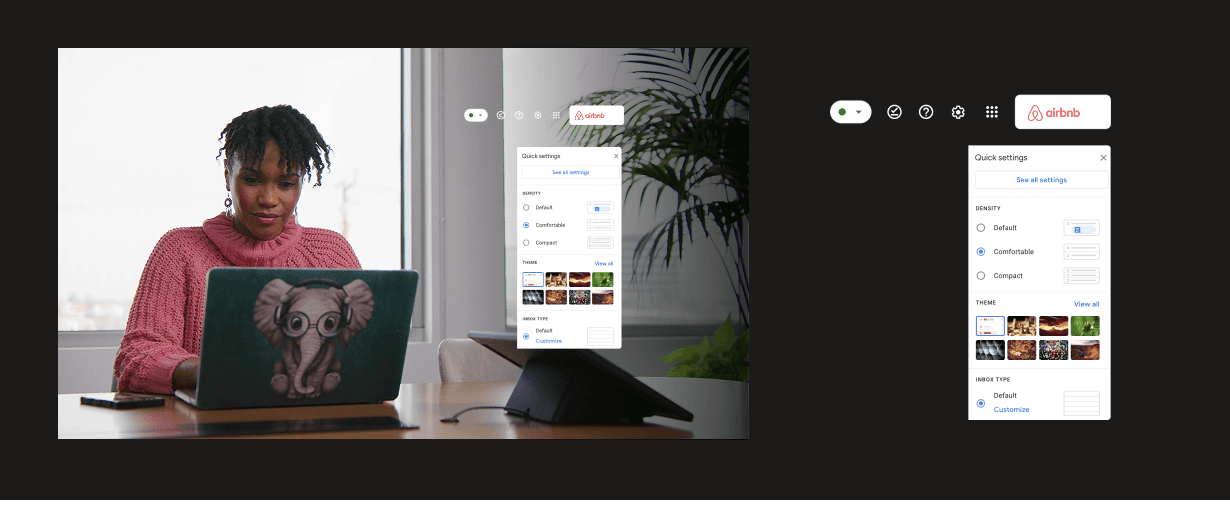

Ui Animations
For every shot that needed a UI overlay, I animated the interface to match exactly how it looks and behaves in the actual software. Keeping it 1:1 was important — anything off would confuse new hires learning the tools for the first time. The goal was for the animation to feel like the real thing, not a stylized version of it.
Storyboard
For each of the seven videos, I broke down the edit shot by shot — figuring out where UI overlays needed to go, what would animate, where I needed to record actual software footage, and which shots needed footage replacements. With dozens of moving pieces per video across the full series, things could get messy fast, so I built a system to keep it all organized. Above is an example of the breakdown storyboard I made — one for each of the seven videos.

Shot breakdown process with Ui elements organized.

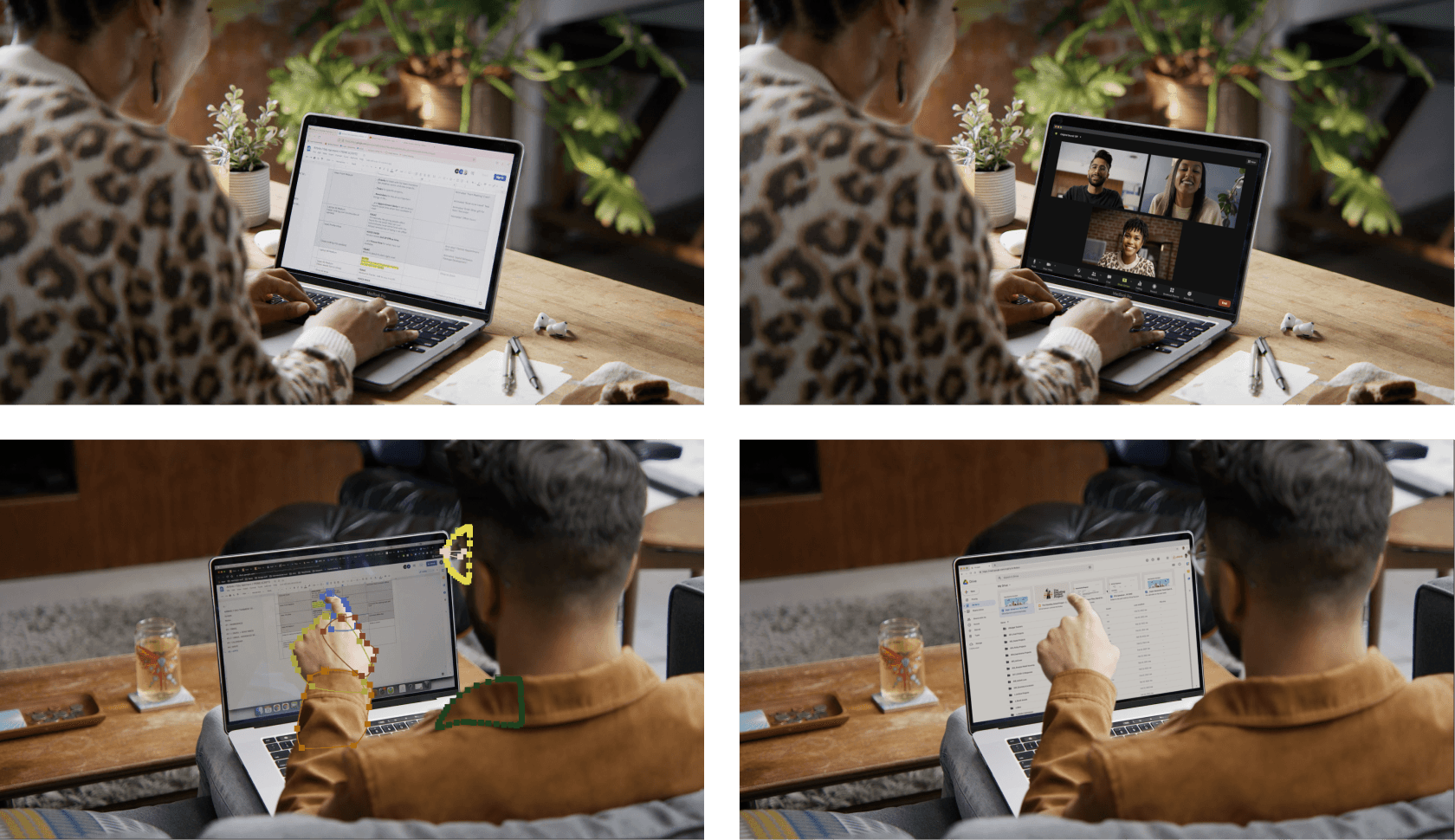
30+ Rotoscoping Scenes
This project also gave me a chance to sharpen my screen replacement skills. I used Boris Mocha to replace all the laptop and phone screens, and learned a lot along the way. Tracking fingers when someone's typing in front of a screen is particularly challenging — you have to track each finger separately to get a clean result, which takes significantly more time but makes all the difference.
Ae Workflow
To create a UI overlay for a video, you bring a clip of that video into After Effects to use as a reference for the animation. On this project I had 60+ clips scattered across the seven videos, and I needed a way to keep them all organized while still being able to isolate the ones that needed work.
The process I landed on: split the video layer on the timeline in Premiere, then import that into After Effects. Each individual clip on the timeline becomes its own comp in AE, with a timestamp in the comp name. That automated process solved the problem — every shot that needed a UI overlay or screen replacement got its own comp, sized correctly and ready to drop back into the edit seamlessly.
Now I know how to tackle this if I'm handed a similar situation in the future.


